How to Install APK Files on Android: Complete Guide 2026
Install APK files on an Android phone can be useful when an app is not available through Google Play or when you need a particular app version. The process is generally simple, but Android includes security settings that can prevent installations from unknown sources.
In this guide, you will learn how APK files work, what to check before installing one, how to install an APK step by step, and how to deal with common installation problems. Following these steps can help you install Android apps more carefully and avoid unnecessary errors.
What Is an APK Files?
APK stands for Android Package Kit. It is the file format Android uses to package and install applications on compatible devices.
When you download an Android application outside Google Play, the file may have an .apk extension. Opening the file starts the Android installation process, provided your phone allows installation from that source.
APK files can be useful for accessing specific app versions, testing applications, or installing software distributed outside the Google Play Store. However, users should always consider the source and permissions before installing an APK.
Is Installing an APK Different From Install Apk Files From Google Play?
Yes. Google Play handles much of the installation process automatically. When you install an APK manually, you are responsible for obtaining the file and starting the installation yourself.
With a manual APK installation, you should pay attention to:
- Where the APK came from
- Whether it matches your Android version
- Whether the file is the correct application
- What permissions the application requests
- Whether your phone has enough storage
- Whether the APK is compatible with your device
These checks are particularly important when the application comes from outside the official app store.
What to Check Before Install APK Files
Before opening an APK file, spend a few minutes checking the basic information.
Check the Source
Only obtain APK files from sources you trust. Avoid random download pages, suspicious pop-ups, or files that appear after clicking misleading advertisements.
A trustworthy source should provide clear information about the application, version, developer, and file.
Check the Android Version
Some applications require a minimum Android version. An APK designed for a newer Android release may not work correctly on an older phone.
Check the application’s compatibility information before installation.
Check the Files Name and Size
A strange file name or an unusually large or tiny file compared with the expected application can be a warning sign.
The file extension should normally be .apk for a standard Android package.
Review Permissions
Think about whether the requested permissions make sense for the application. For example, a simple utility may not reasonably need access to unrelated personal information.
You can learn more about this in our guide on what to check before installing an APK.
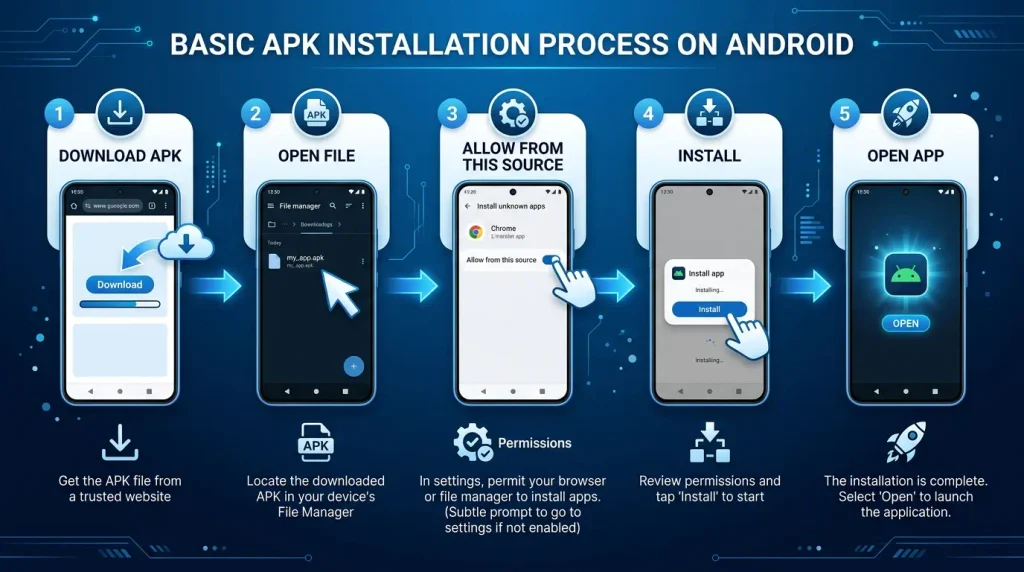
How to Install an APK Files on Android
The exact menu names can vary between Android phones and manufacturers, but the general process is similar.
Step 1: Download the APK
Download the APK file to your Android device from a source you trust.
After the download finishes, open your phone’s Files, File Manager, or Downloads application.
Step 2: Find the APK File
Open the folder where the APK was downloaded.
In many cases, this will be the Downloads folder.
Look for the APK file you want to install and tap it.
Step 3: Allow Installation From the Source
Android may display a security message explaining that your phone is not currently allowed to install applications from that source.
If you trust the source, Android may provide an option such as Settings or Allow from this source.
Open the relevant setting and allow the application or browser you are using to install the APK.
For security, only enable this permission for a source you understand and trust.
Step 4: Return to the APK Files
Go back to the downloaded APK and tap it again.
You should now see the application’s installation screen.
Review the information shown and select Install if you want to continue.
Step 5: Wait for Installation
Android will process the APK.
Depending on the application’s size and your phone’s performance, this may take a few seconds.
Once the installation is complete, you may see options such as Open or Done.
Select Open if you want to launch the application immediately.
Installing APK Files on Newer Android Versions
Newer Android versions provide stronger controls around applications installed outside Google Play.
The exact location of the setting depends on your phone manufacturer and Android version.
Instead of searching for one specific menu path, use your phone’s Settings search and look for terms such as:
Install unknown apps
or
Unknown sources
You may then need to choose the browser or file manager from which you are opening the APK and allow installations from that source.
After installing the application, you can review the same setting and disable the permission if you no longer need it.
How to Install an APK Using a Files Manager
A file manager can make manual APK installation easier.
First, open your file manager and go to Downloads or the folder where the APK is stored.
Tap the APK file.
If Android requests permission to install from that source, open the relevant settings and enable the permission for your file manager.
Return to the file and tap it again.
Select Install and wait until the process finishes.
If the installation fails, don’t repeatedly try the same file without checking the reason. The APK may be incompatible, incomplete, corrupted, or already installed in another version.
Common APK Installation Problems
Sometimes an APK does not install even when the basic steps are correct.
Common reasons include:
App Not Installed
This message can appear because of compatibility problems, insufficient storage, a conflicting existing version, or an unsuitable APK package.
Check your Android version and available storage first.
Parse Error
A parse error can occur when Android cannot properly process the APK package.
The file may be damaged, incompatible with the device, or intended for a different Android environment.
Insufficient Storage
Your phone needs enough free storage to install an application.
Remove unnecessary files or applications and try again if your storage is nearly full.
Installation Permission Is Disabled
Android may block the installation if the browser or file manager does not have permission to install applications from that source.
Check the relevant setting and only enable it when you trust the APK source.
For a more detailed troubleshooting process, see our guide on how to fix APK installation errors on Android.
How to Uninstall an APK Files
An application installed through an APK can normally be removed in the same way as other Android applications.
Open Settings, go to Apps or Applications, select the application, and choose Uninstall.
You can also uninstall many applications by pressing and holding the application icon and selecting the uninstall option.
Removing an application does not necessarily remove every personal file it created, so check the application’s storage information if you want to remove remaining data.
APK Installation Safety Tips
Manual installation gives you more control, but it also means you should be more careful.
Keep these points in mind:
- Download APK files only from sources you trust.
- Check the application name and developer information.
- Make sure the APK is compatible with your Android version.
- Review requested permissions.
- Avoid suspicious modified or unknown APK files.
- Keep Android and your security software updated.
- Do not ignore serious security warnings.
- Keep important personal data backed up.
- Remove applications you no longer use.
- Disable installation permission for unknown sources when it is no longer needed.
If an APK behaves unexpectedly after installation, consider uninstalling it and reviewing your device for unusual activity.
Frequently Asked Questions
Can I install an APK without Google Play?
Yes. Android supports manual APK installation, although you may need to allow installation from the particular source you are using.
Why does Android block my APK?
Android can block an APK because installation from that source is disabled, the application is incompatible, the package is damaged, or the device has security restrictions.
Is every APK safe to install?
No. An APK is simply an application package format. Its safety depends on the application, its source, its contents, and how it was distributed.
Can I uninstall an APK after installing it?
Yes. Once installed, an application can normally be uninstalled through Android’s regular app management settings.
Why is my APK not installing?
Possible reasons include insufficient storage, Android compatibility problems, an incomplete package, conflicting application versions, or installation permissions.
Final Thoughts
Installing APK files on Android is usually straightforward once you understand the basic process. The most important part is not simply getting an APK installed but checking the source, compatibility, permissions, and file information before installation.
If an APK fails to install, avoid repeatedly trying the same file without identifying the problem. Check your Android version, storage, installation permissions, and package compatibility first.
For additional information, APKNEXUS users can also explore our guides on APK installation errors and what to check before installing an APK. These resources can help you understand the installation process and make more informed decisions when using applications outside Google Play.